
AI integration (MCP) is now available. AI can create campaign drafts for you
- Published
- App version
- v0.2.17
You can now connect AI tools such as Claude Code and Codex to JustFlow for LINE and create campaign drafts through conversation. Sending happens only after the merchant reviews the draft.
JustFlow for LINE now supports MCP (Model Context Protocol), a way to connect AI with apps. When you connect an MCP-compatible AI tool such as Claude Code, Codex, or Cursor, you can create campaign drafts through a conversation with the AI.
💡 AI only creates drafts. It cannot send, schedule, or delete. Messages reach customers only when the merchant presses the send button on the confirmation screen.
What changes
Until now, creating a campaign meant choosing a template and adjusting text and images one by one in the editor. With AI integration, you can leave that assembly to the AI.
For example, you can ask the AI things like this.
- “Create an announcement for this weekend’s sale. Put three cards with images and buttons in a carousel.”
- “Shorten the heading of the draft you just made, and change the button text to ‘View products’.”
- “Make a draft announcing new product arrivals, addressed to all linked customers.”
The AI checks the templates and recipients saved in JustFlow for LINE, builds a Flex message, and saves it as a draft. You can open the draft on the usual Campaigns screen and check it in the preview. If anything needs changing, you can edit it in the editor or ask the AI again.
What AI can and cannot do
What AI can do:
- Read the list of templates and their content
- Read the list of recipients (all linked customers, LINE audiences)
- Create campaign drafts
- Edit drafts
- Read campaigns
What AI cannot do:
- Send, schedule, or delete campaigns
- Read customer information
The merchant always decides whether to send.
How to connect
- Open the app’s Settings and press “Issue token” in AI integration (MCP). You can give the token a name (for example, “My Claude Code”).
- Note down the token that is shown. Once you leave this screen, the token cannot be displayed again.
- Register the connection URL shown on the same screen and the token in the AI tool you use. The Settings screen shows an example (a command) for connecting with Claude Code, which makes this easy.
- Ask the AI for the campaign you want to create.
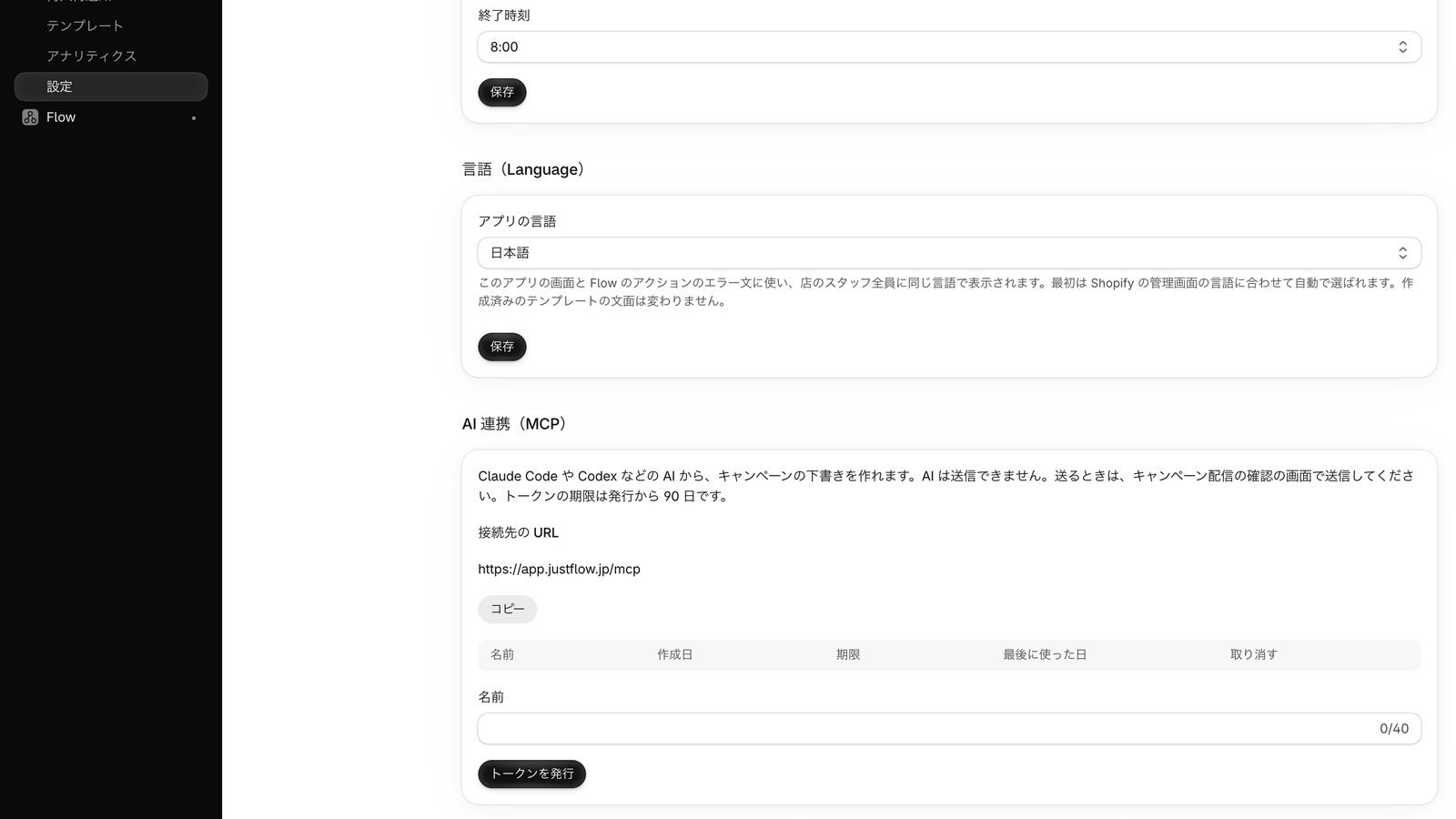
Tokens have an expiration date; issue a new one when a token expires. You can disable a token you no longer use right away with “Revoke” on the Settings screen. The date each token was last used is also shown on the same screen.
About costs
The wording is written by the AI the merchant uses. Because JustFlow for LINE does not run AI itself, JustFlow for LINE does not charge AI usage fees for AI integration (fees for the AI tool itself depend on each service’s terms). Since the AI only creates drafts, it does not use your LINE message quota either.
Supported AI tools
MCP clients that can send the token in an HTTP header when connecting are supported (Claude Code, Codex, Cursor, and others).
Try asking the AI for a draft of a small campaign first.