🧭 This page groups common sticking points in first-time setup by what happens. For the setup steps, see Getting started. If this does not solve your problem, please contact support.
Connecting the LINE Official Account or LINE Login does not work
In most cases, something is missing in the LINE settings. In LINE Developers, check the following in order.
- Is the LINE Login channel “Published”? While it is still “Developing”, only the channel’s admins and testers can log in, so customers cannot link.
- Is the LINE Login channel under the same provider as the Messaging API channel?
- Is the LINE Login channel linked to your LINE Official Account?
- Did you register the URL shown in the app’s Settings as the callback URL of the LINE Login channel? Using the “Copy” button on the screen helps avoid copying mistakes.
- Are the channel ID and secret entered in the app from the correct channels? In the LINE Login fields, enter the ID and secret of the LINE Login channel, not the Messaging API channel.
Each time you open the app’s Settings screen, it checks that the callback URL is registered. If something is missing, it shows “Setup incomplete” instead of “Connected”. When linking fails, this screen also shows hints about the cause.
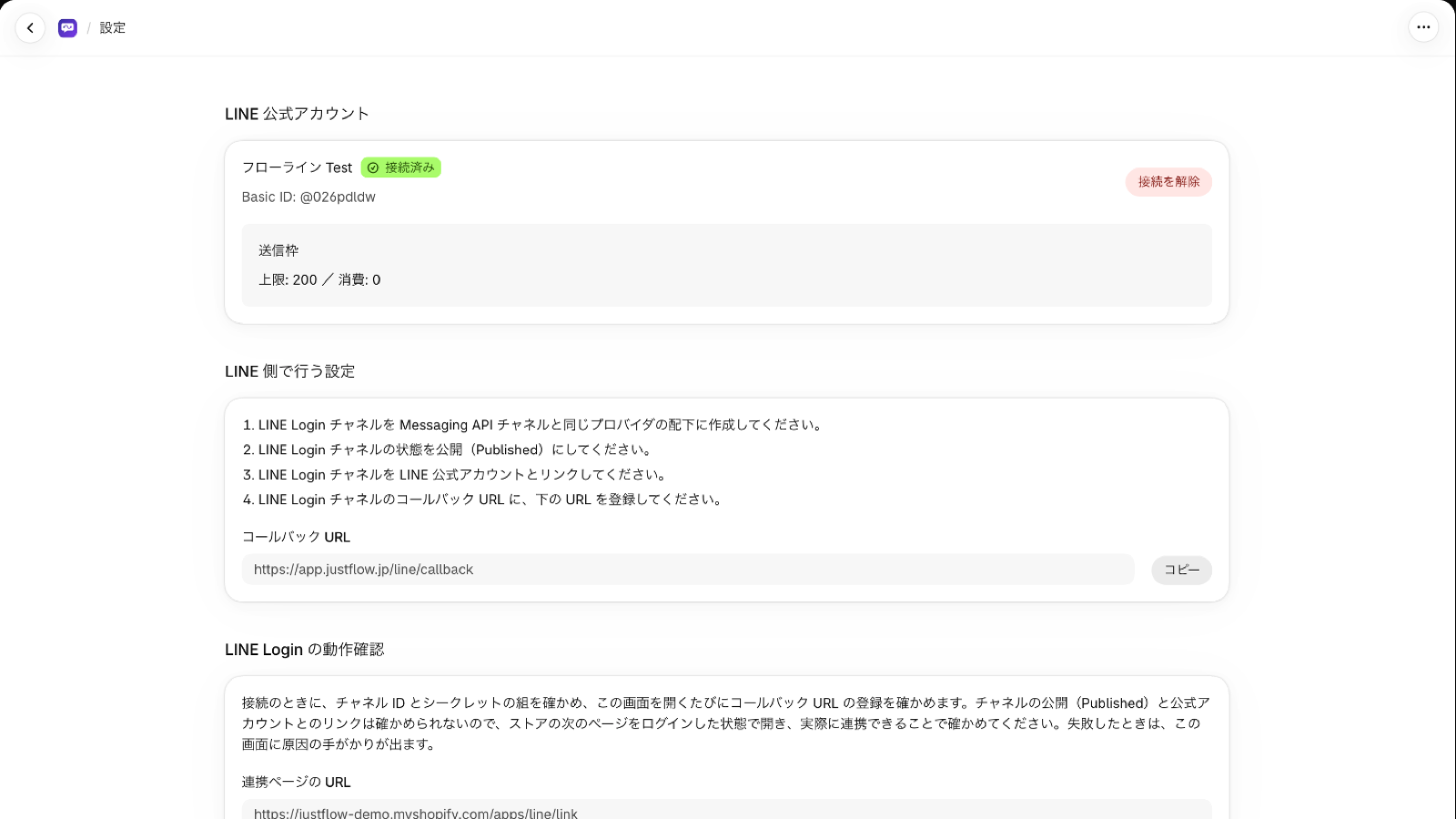
💡 The app cannot check whether the channel is published or linked to your Official Account. After setup, log in to your store as a customer and try linking on the linking page (
/apps/line/link).
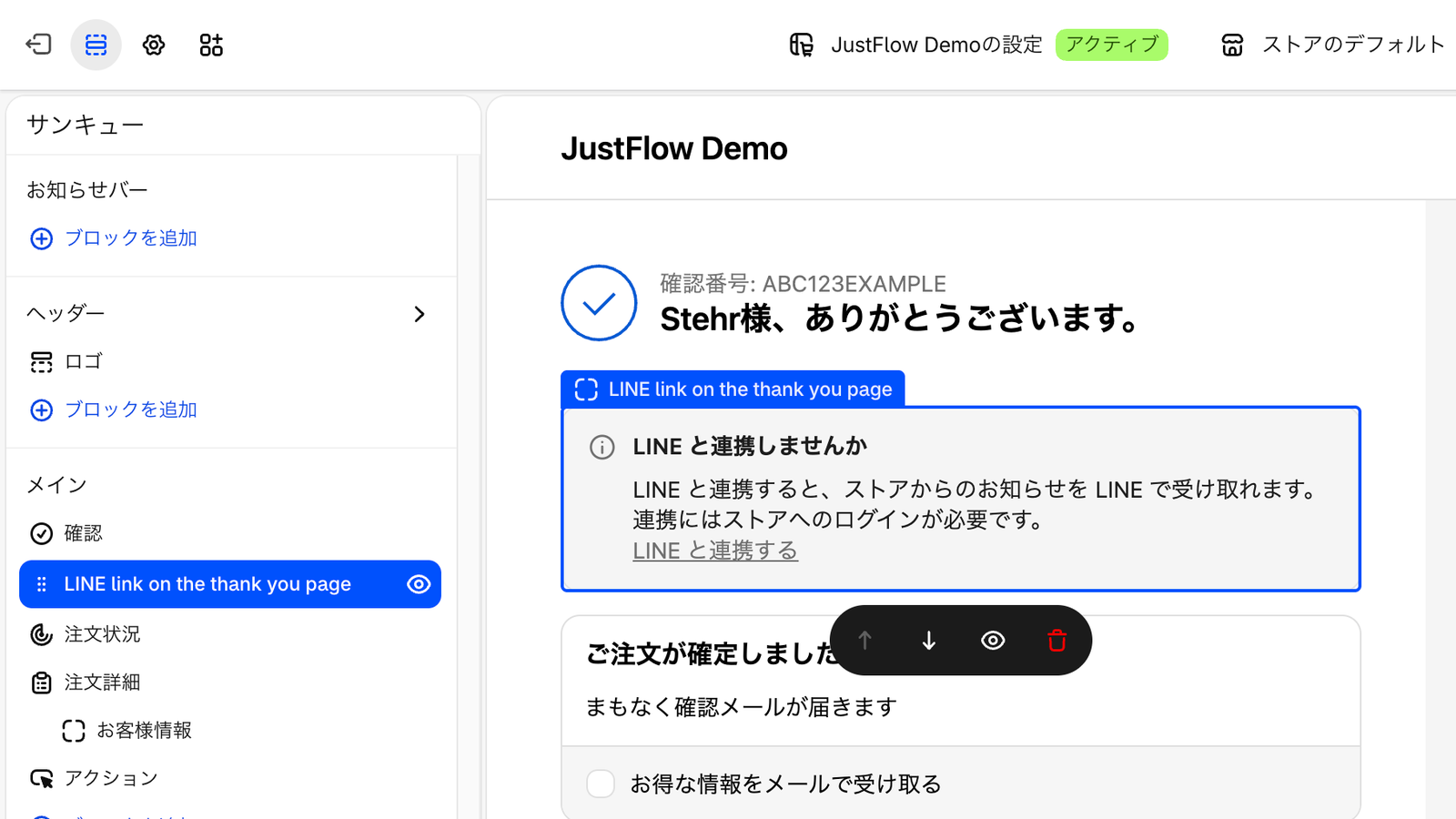
The linking banner does not appear in the store
- Did you add the app block and save? Add the thank you page block in the checkout editor, the order status page and profile page blocks in the customer account editor, and the theme block in the theme editor.
- The order status page block is shown only with new customer accounts. If your store uses legacy customer accounts, share a link to the linking page (
/apps/line/link) in your menu or in emails. The linking page works with both types of customer accounts.
Customers cannot link
- Customers need to be logged in to the store to link. For customers who are not logged in or who checked out as guests, the linking page prompts them to log in.
- Also check items 1–5 in “Connecting the LINE Official Account or LINE Login does not work” above.
Messages sent from Flow do not arrive
- Messages are not sent to customers who have not linked LINE. In this case, the workflow run does not fail.
- The customer has not added your LINE Official Account as a friend, or has blocked it. Because of how LINE works, the message is not delivered. During linking, LINE prompts the customer to add the account as a friend.
- Your LINE Official Account’s message quota has been used up. The quota depends on your LINE Official Account plan. You can check your current quota on the app’s Settings screen.
- Is the workflow turned on? In Shopify Flow, check that the trigger (such as an order) happened after you turned the workflow on.
I cannot find the Flow action
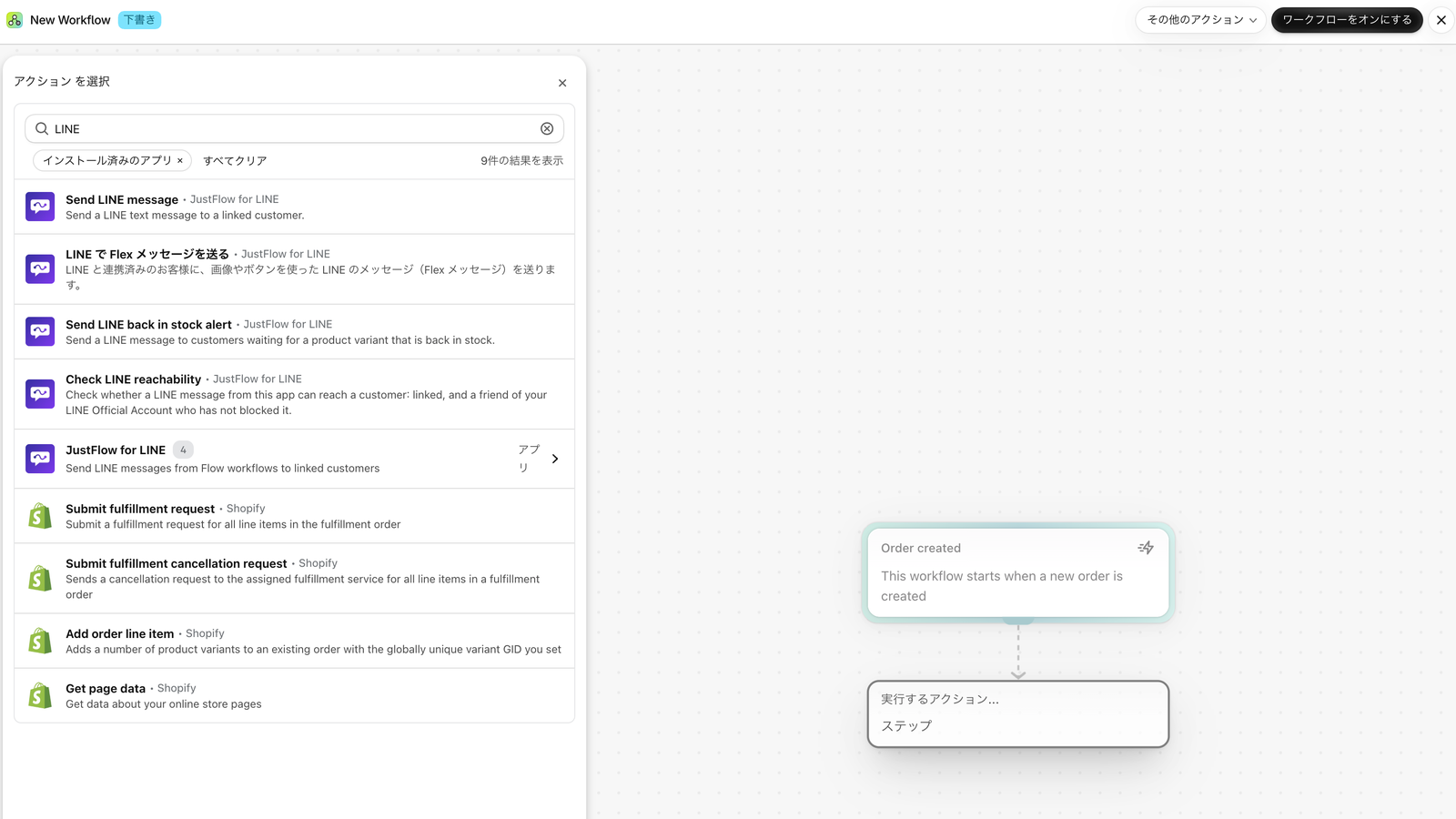
When adding an action in Shopify Flow, search for these names.
- To send text: “Send LINE message”
- To send a Flex message: the Flex message action (shown as “LINE で Flex メッセージを送る”)
Orders and sales do not appear in Analytics
To show orders and sales from LINE, permission to read orders is required. Grant it from the prompt on the Analytics screen. Even without it, sends, people who opened, and people who clicked are shown.
People who opened and people who clicked are counted by LINE. While the numbers are small, the screen shows “Fewer than … people” instead of an exact count.
I cannot choose or send to a LINE audience in a campaign
- You can choose audiences that were created in places such as the LINE Official Account Manager and are ready (available to use).
- Under LINE’s rules, messages to an audience are not sent if there are too few recipients. If a warning appears on the confirmation screen, review the recipients.