

1. Install the app
Install the app in your store from the JustFlow for LINE page on the Shopify App Store. Please check pricing on the App Store page as well.
2. Connect your LINE Official Account
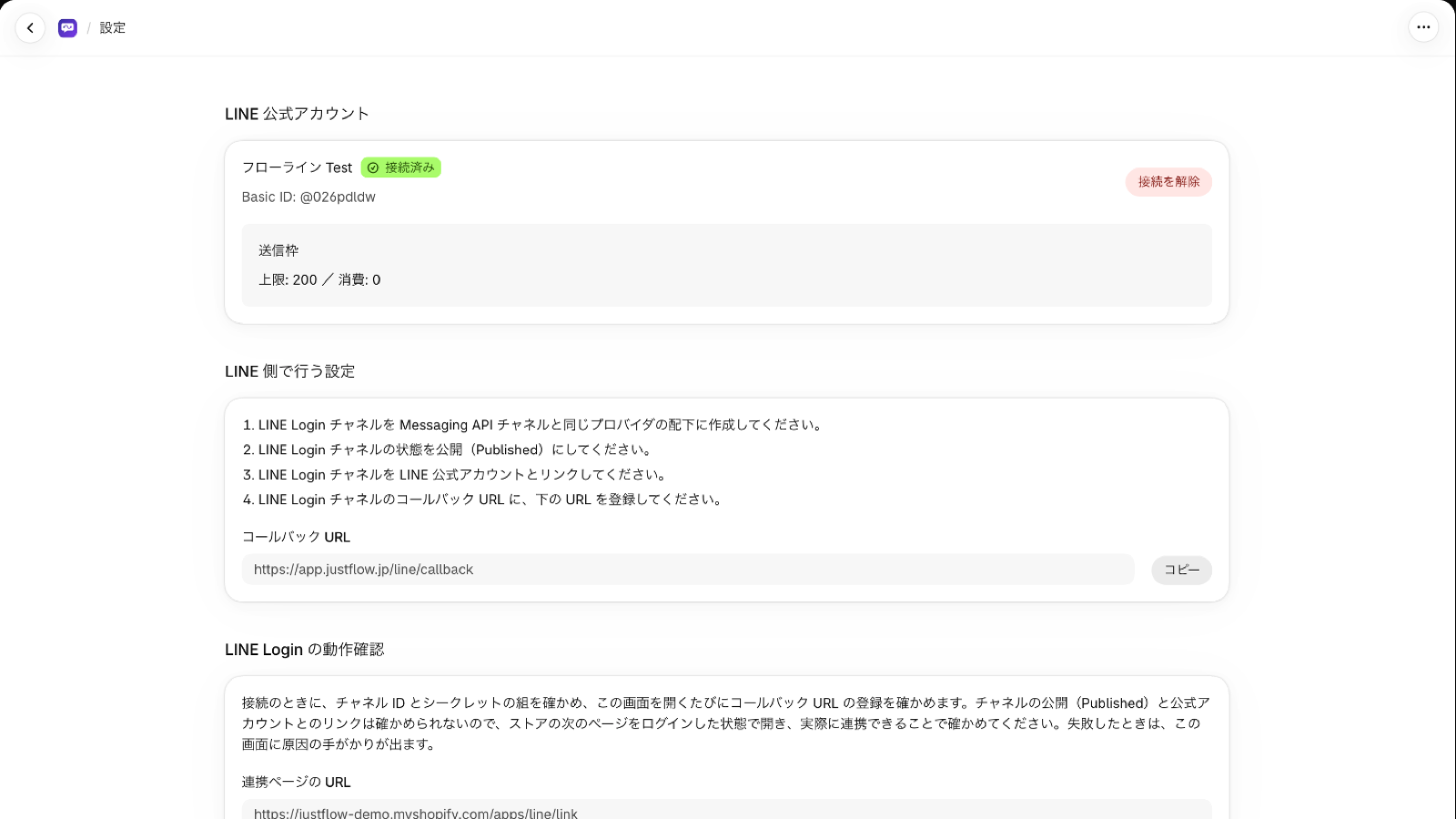
JustFlow for LINE uses the merchant’s own LINE Official Account. First, prepare the following in LINE Developers.
- Set up a Messaging API channel for your LINE Official Account and a LINE Login channel under the same provider.
- Link the LINE Login channel to your LINE Official Account and set its status to “Published”.
- Register the URL shown on the app’s Settings screen as the callback URL of the LINE Login channel.
Next, in the app’s Settings, enter the channel ID and channel secret of both channels to connect. Once connected, the name of your LINE Official Account and your message quota are shown.
💡 No LINE webhook setup is needed. JustFlow for LINE does not change the webhook URL.
3. Let customers link their LINE account
Place entry points in your store so customers can link with LINE Login. In the editor for each location, add a JustFlow for LINE app block.
- Thank you page — “LINE link on the thank you page” in the checkout editor
- Order status page — “LINE link on the order status page” in the customer account editor
- Customer account profile — “LINE link on the profile page” in the customer account editor
- Online store theme — the JustFlow for LINE block in the theme editor
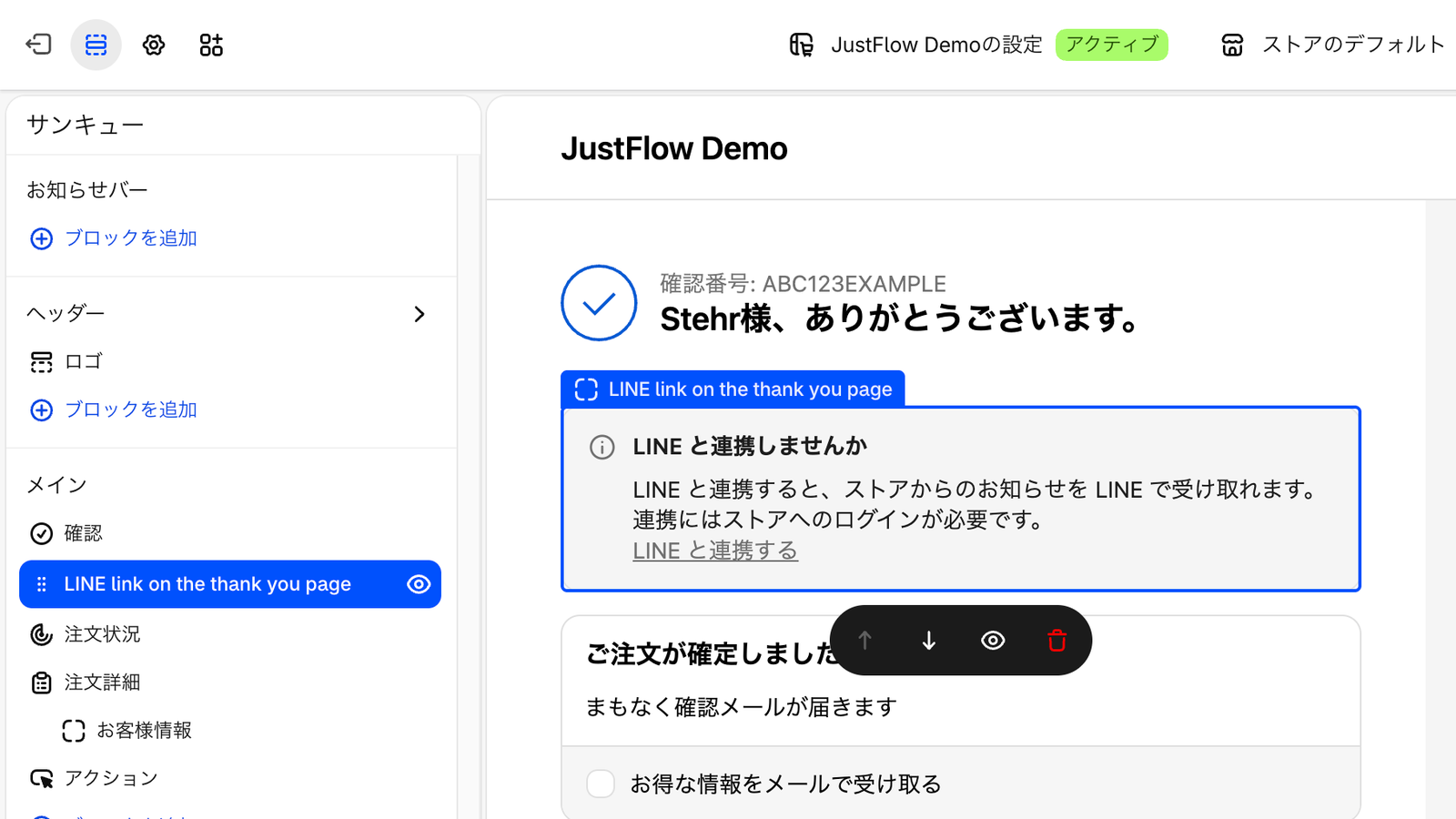
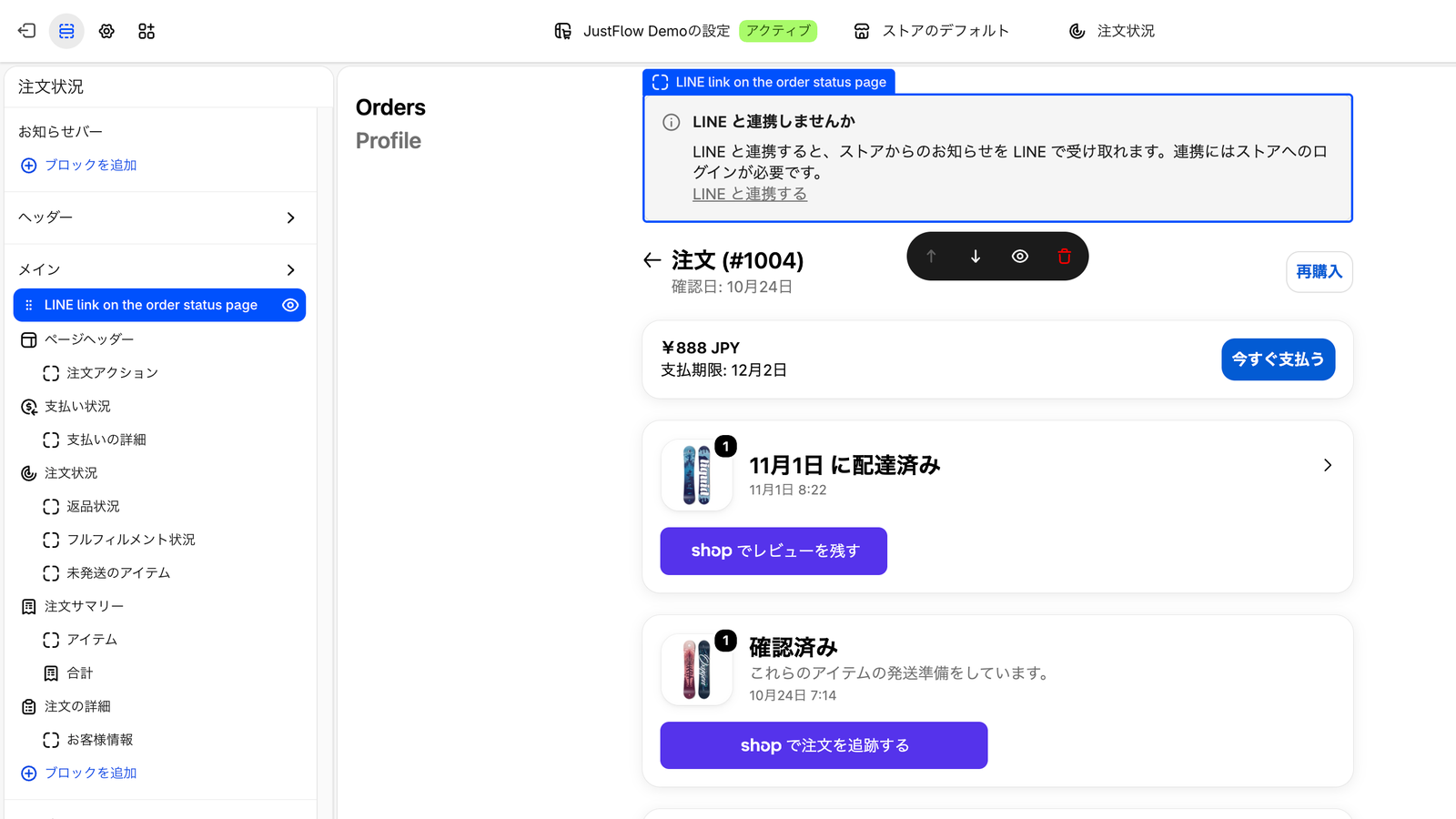
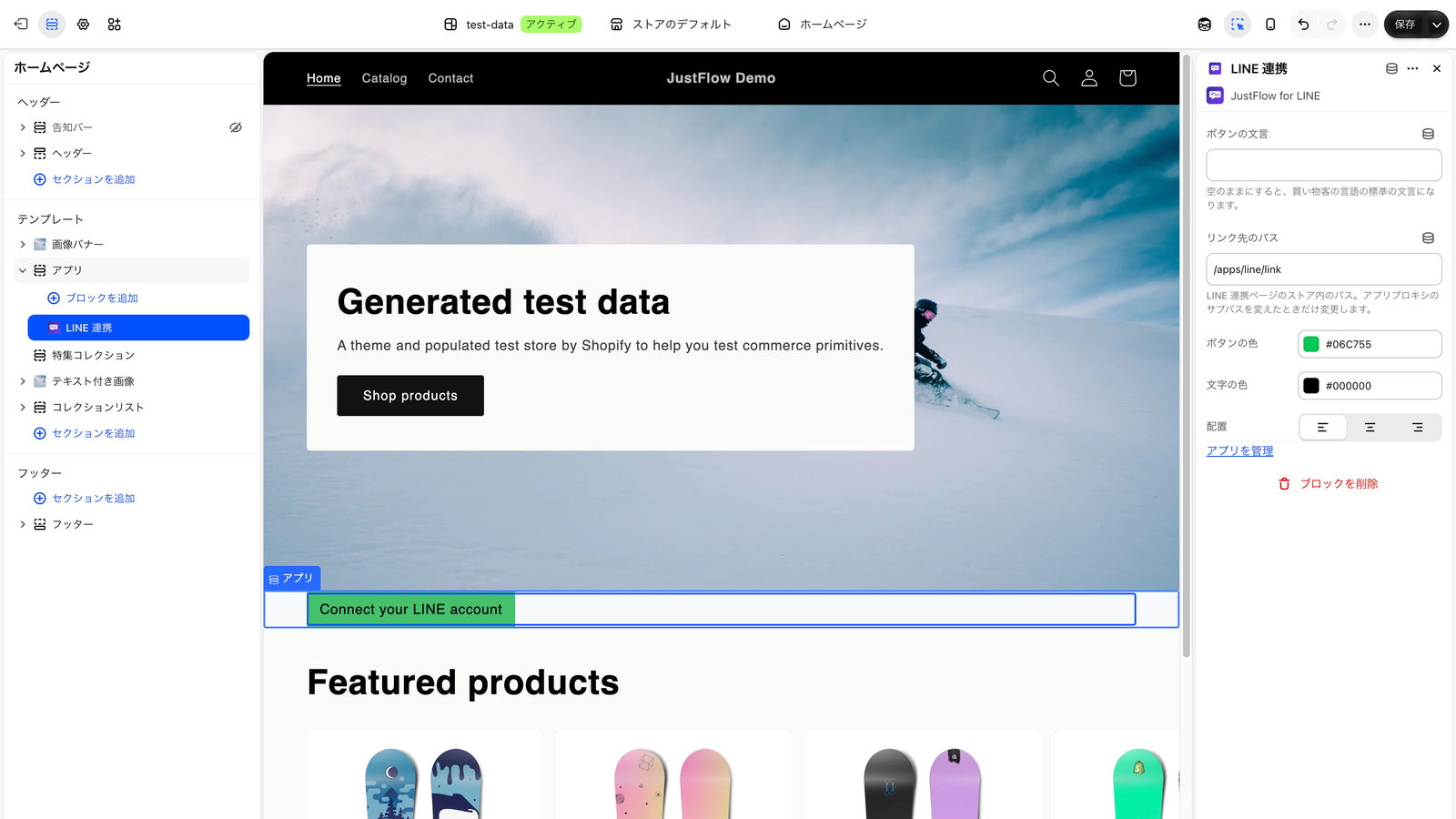
You can also share a link to the store’s linking page (/apps/line/link) in your menu or in emails.
⚠️ Customers need to be logged in to the store to link.
4. Send from Shopify Flow
Create a workflow in Shopify Flow and add a JustFlow for LINE action after a trigger (for example, order created).
- To send text: “Send LINE message”
- To send a Flex message: the Flex message action (shown as “LINE で Flex メッセージを送る”)
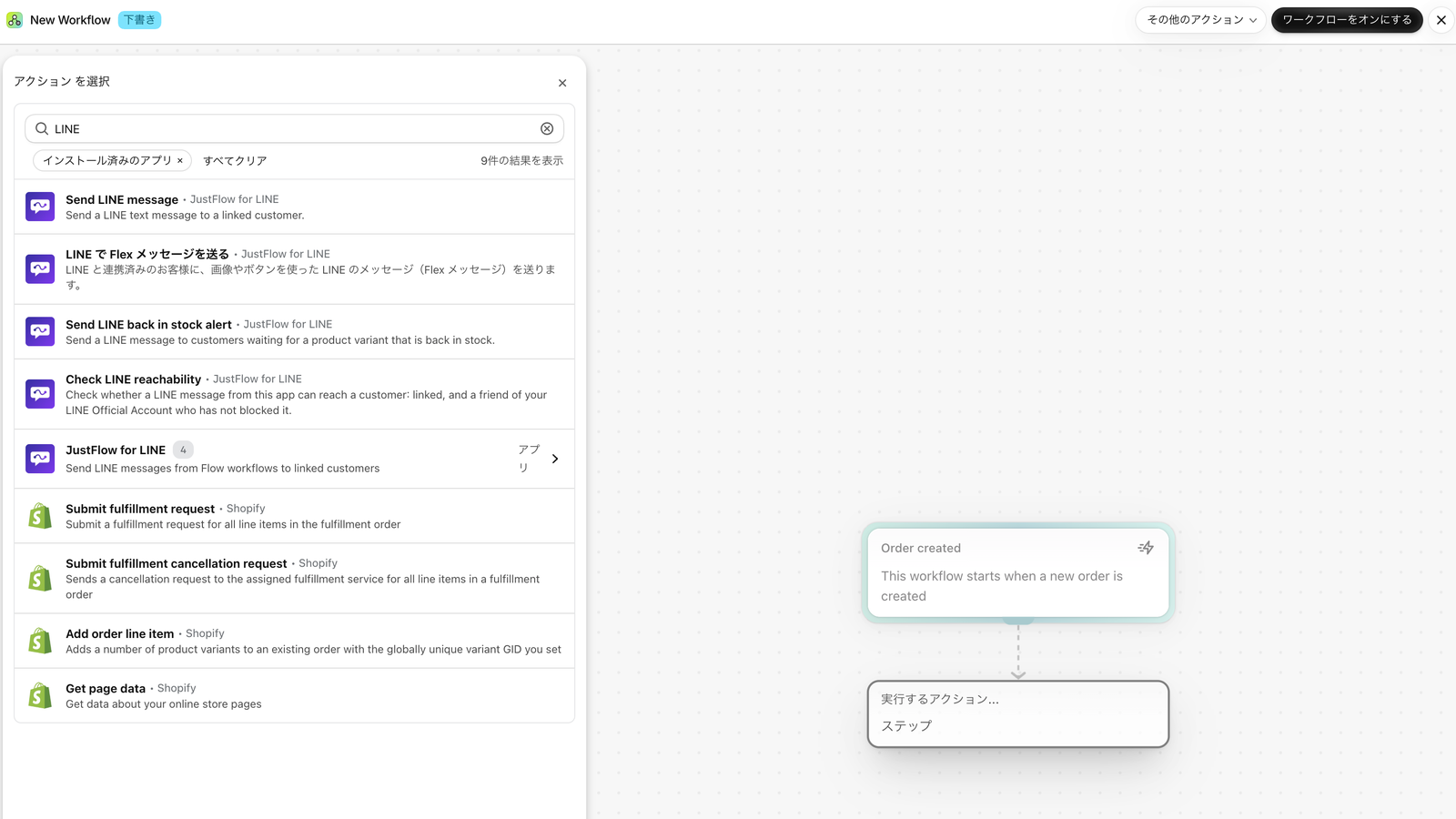
Specify the customer in the action and turn on the workflow. Messages are sent only to customers who have linked LINE.
You can check the results in the app’s Dashboard and Analytics. To send to many customers at once without Flow, use Campaigns (Features).