Features
The main features of JustFlow for LINE, with screens from the app.

Send LINE text and Flex messages from Shopify Flow workflows
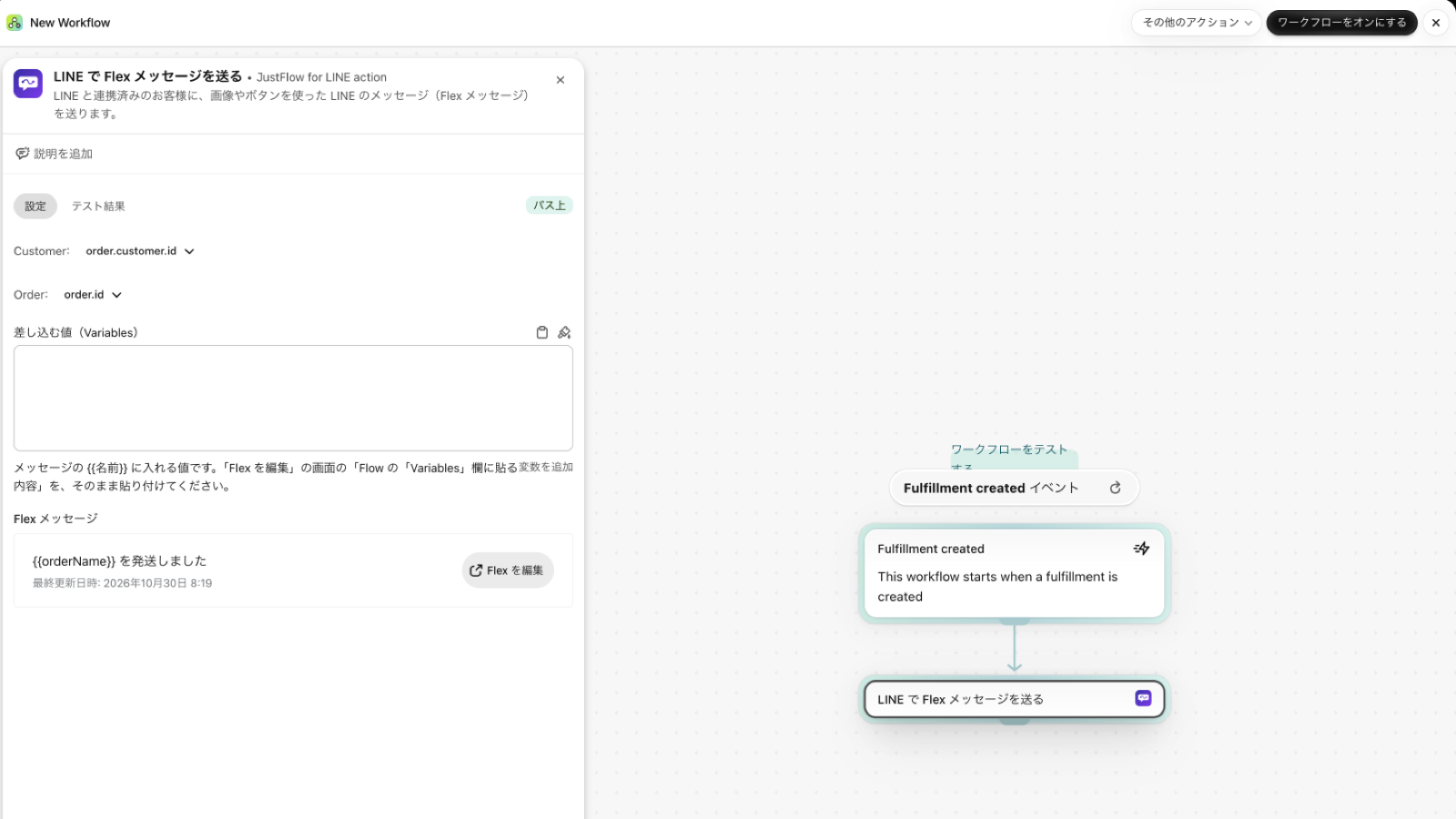
JustFlow for LINE adds actions to Shopify Flow. Place one after a trigger such as order created or fulfillment, and it sends a LINE message to that customer.
- Send LINE message — Sends a LINE text message. You can insert Flow values into the message text.
- The Flex message action (shown as “LINE で Flex メッセージを送る”) — Sends a LINE message with images and buttons (a Flex message). The content is a message you created in the JustFlow for LINE admin.
Messages go to customers who have linked LINE. Customers who have not linked yet are skipped, and the workflow run does not fail.
A visual Flex editor, and order templates that include line items and the shipping address
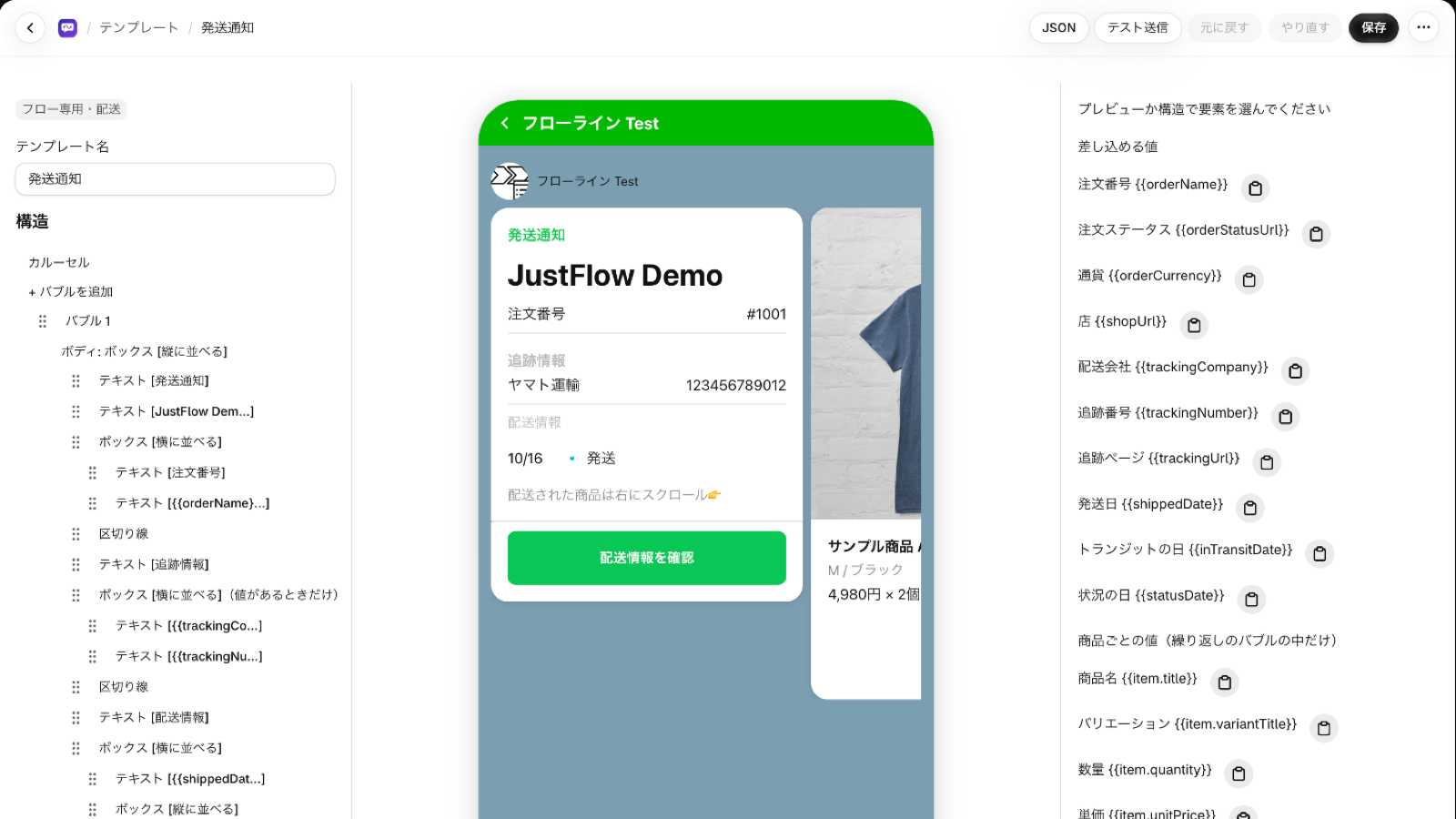
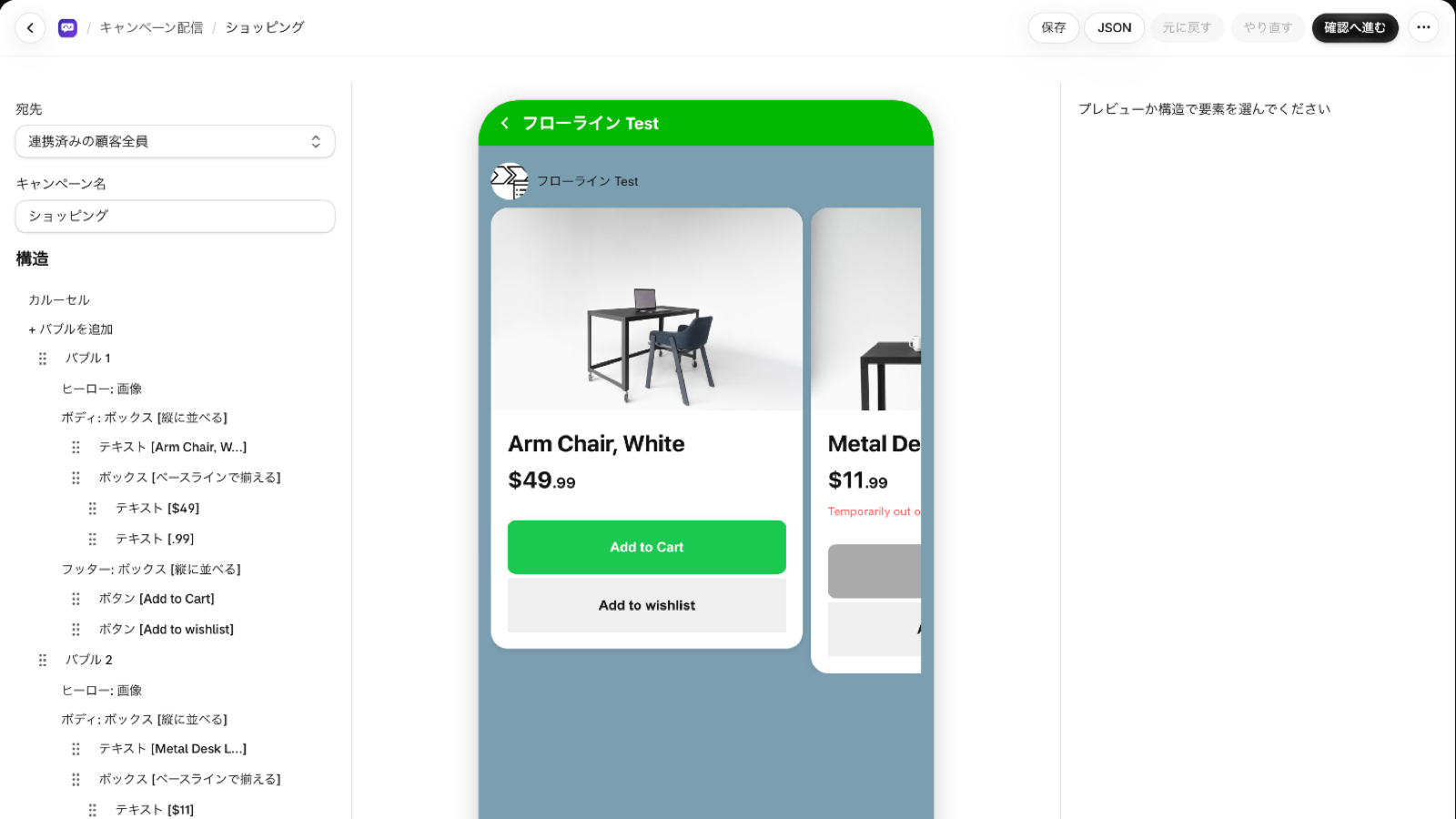
You build Flex messages while watching the preview in the center of the screen. Add and reorder elements in Structure on the left, and change the settings of the selected element in the panel on the right. No JSON is required.
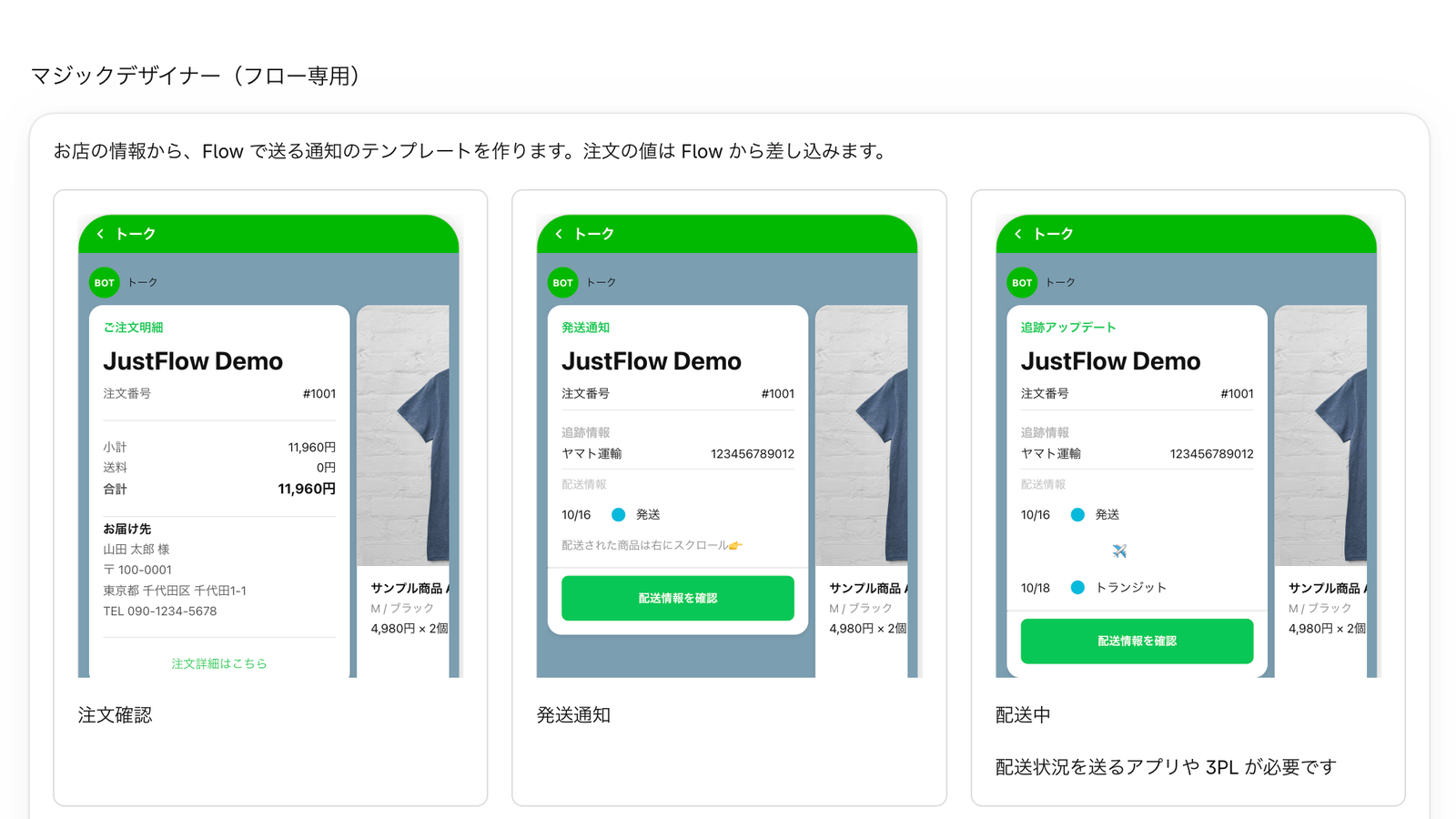
In order templates, you can insert values such as the order number in the form {{orderName}}. The order’s line items and shipping address are filled in from the order when the message is sent.
You can check the messages you create by sending a test from the editor.
Send campaigns to linked customers or LINE audiences (now or scheduled)
With Campaigns, you can send messages to many customers at once without Flow. You build the message in the Flex editor.
Choose one of these two recipient types.
- All linked customers — Customers who have linked LINE through JustFlow for LINE
- LINE audience — An audience created in places such as the LINE Official Account Manager
You can send now or schedule a specific date and time.
See sends, opens, and clicks for each message, plus orders when permitted
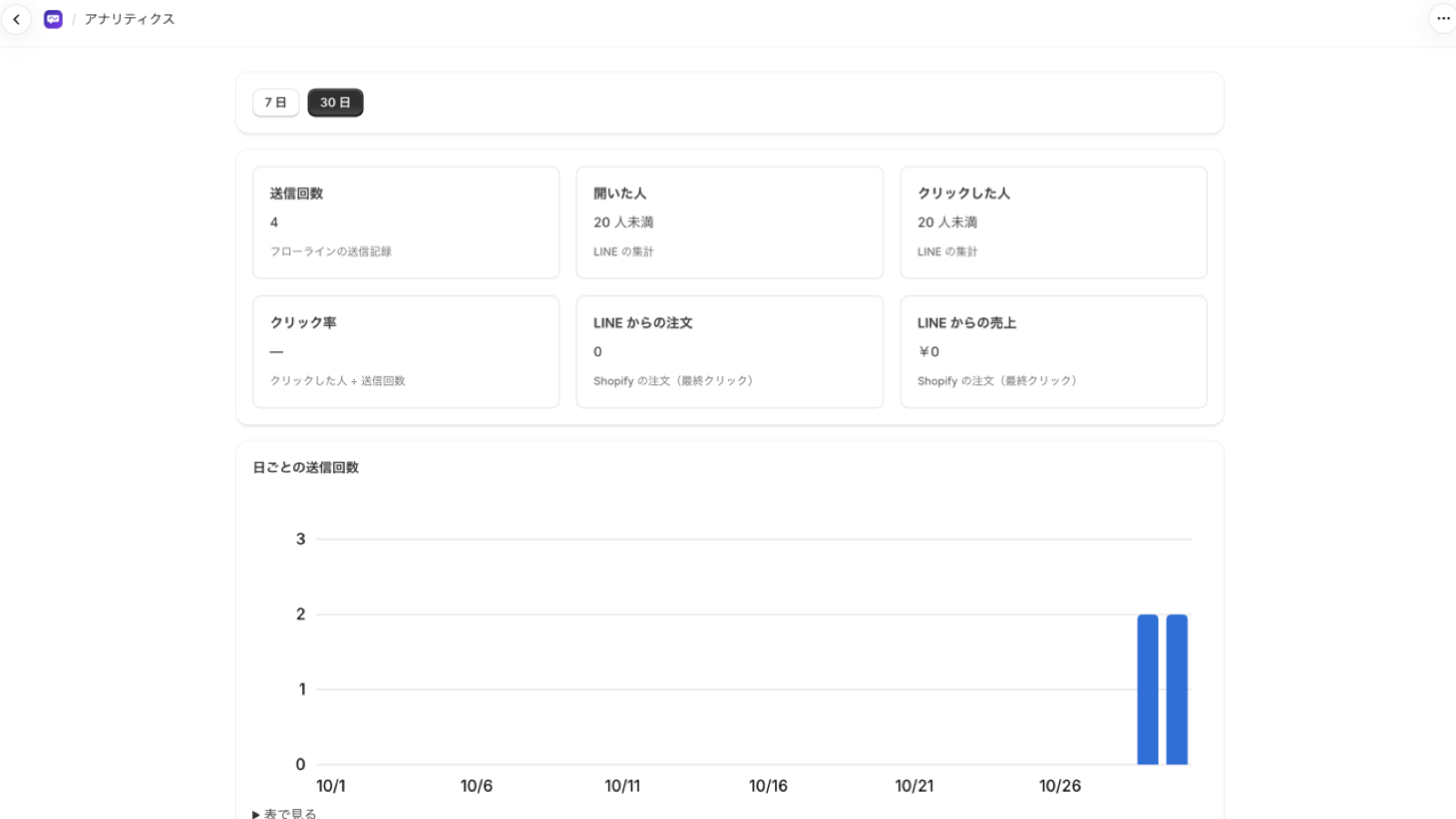
Analytics and Dashboard show the results of the messages you sent.
- Sends — The number of messages JustFlow for LINE sent
- People who opened and people who clicked — Counted by LINE
- Orders and sales from LINE — Counted from Shopify orders (attributed to the last click). Shown only when the merchant has granted permission to read orders
You can also check results for each campaign and Flow message in the lists on the Dashboard.
Customers can link LINE from checkout pages, theme blocks, and customer accounts
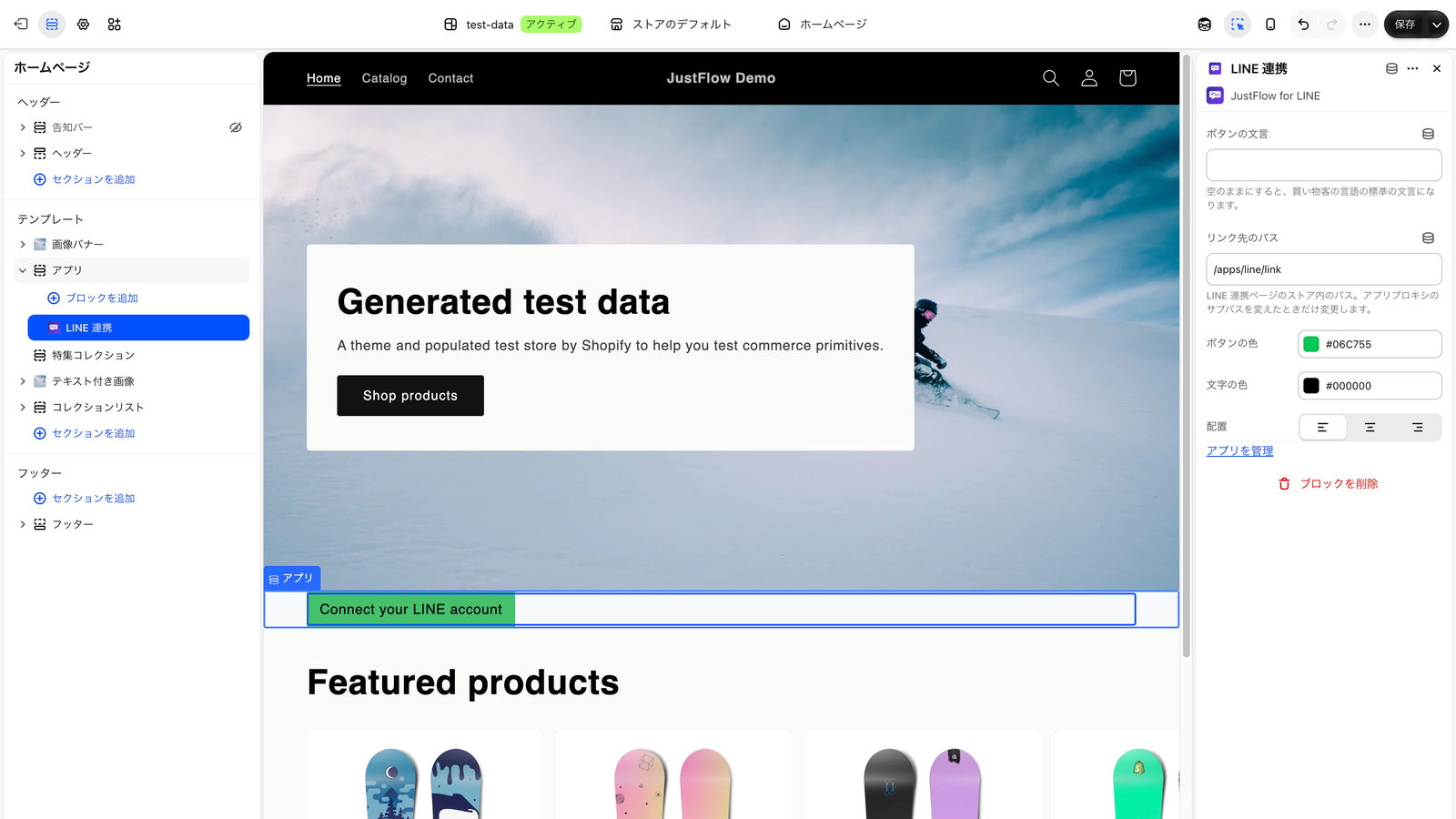
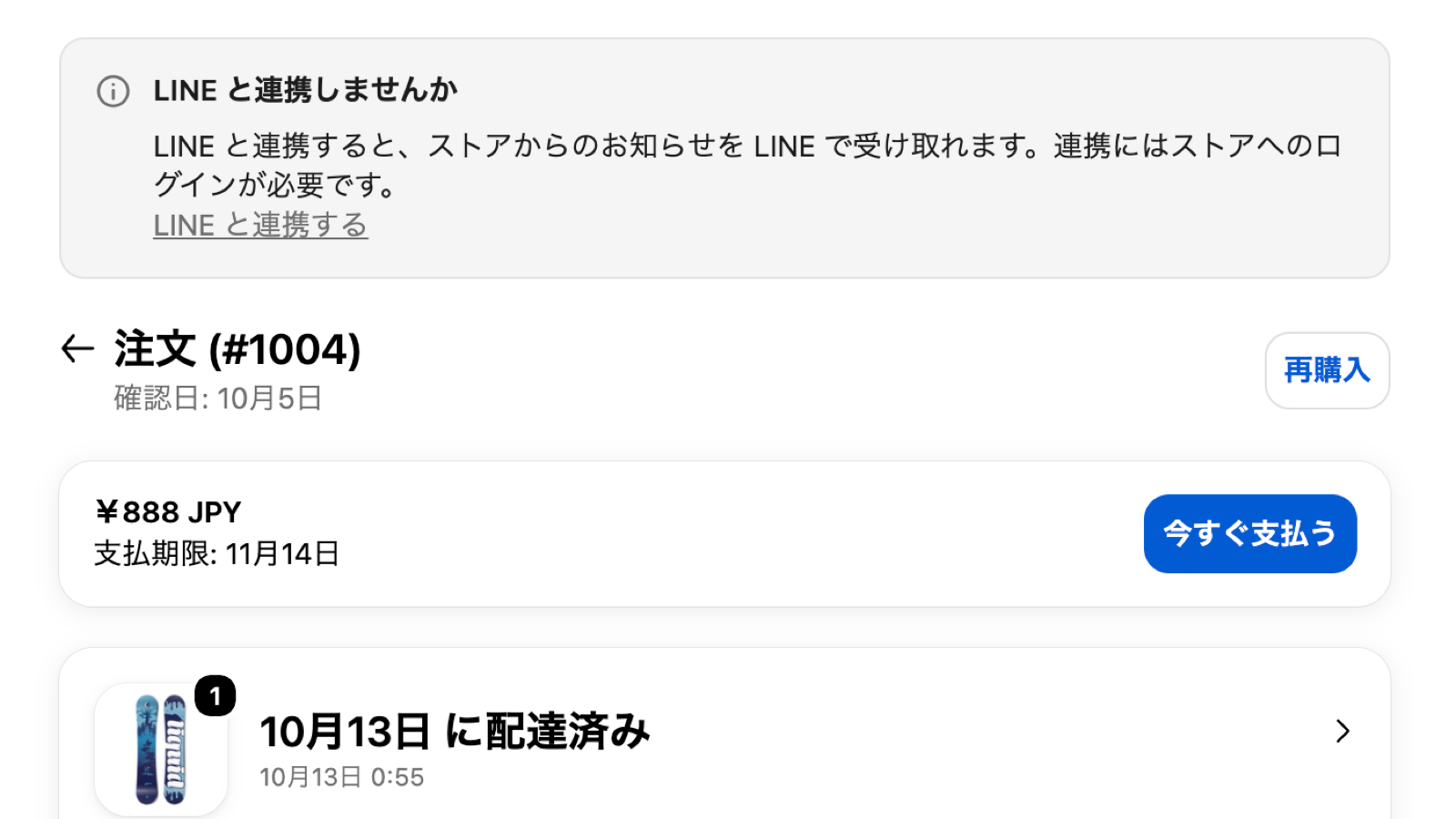
To receive messages, customers link their LINE account with LINE Login. You can place linking entry points as app blocks in these locations.
- Thank you page (the order confirmation page)
- Order status page
- Online store theme (a theme block)
- Profile page of the customer account
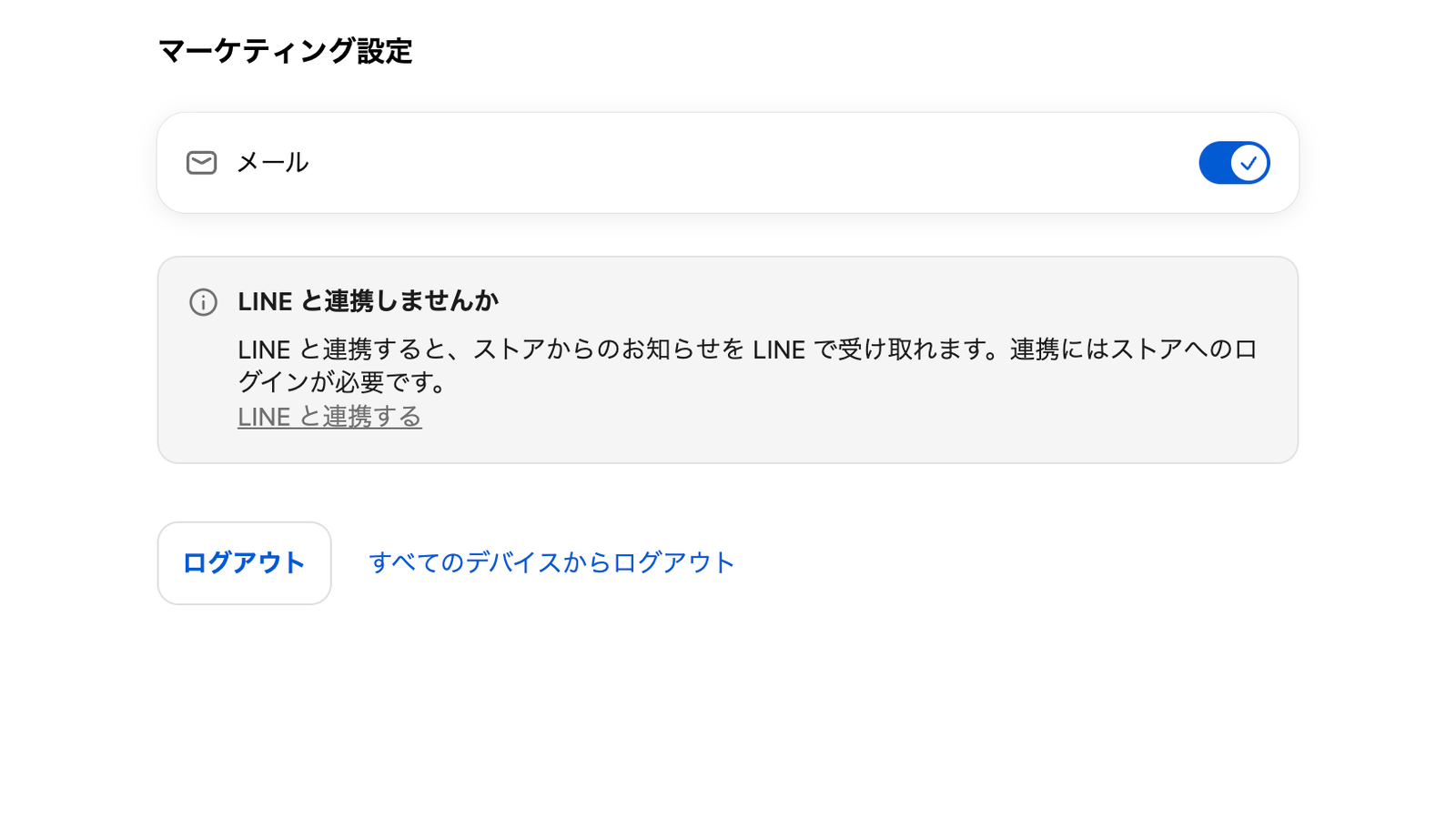
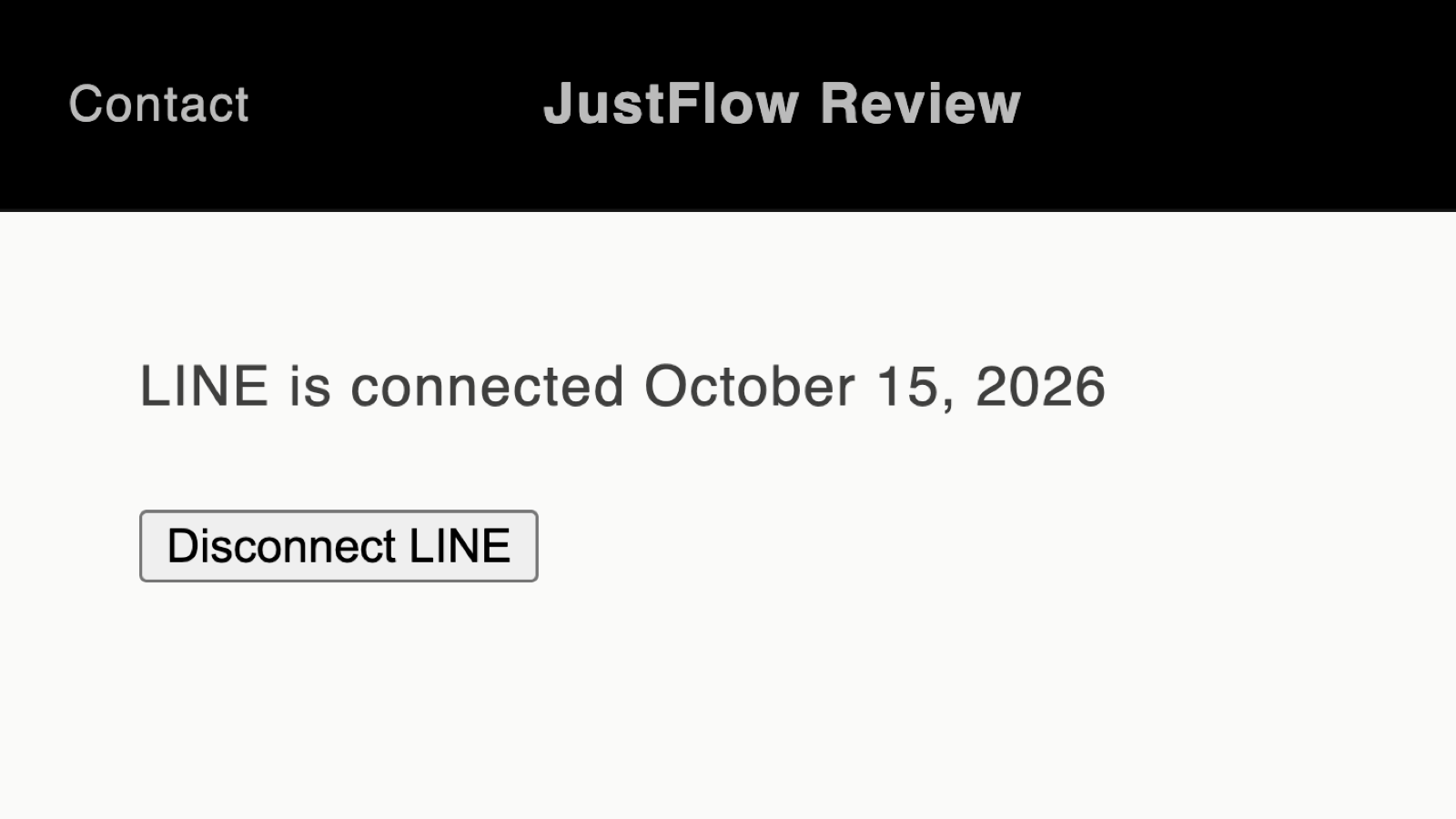
Customers need to be logged in to the store to link. Linked customers can check their link status and unlink on the store’s linking page (/apps/line/link).
Create campaign drafts from Claude Code or Codex with AI integration (MCP)
JustFlow for LINE supports MCP (Model Context Protocol), a way to connect AI with apps. When you connect an MCP-compatible AI tool such as Claude Code, Codex, or Cursor to JustFlow for LINE, the AI can create campaign drafts.
For example, if you ask the AI to “create an announcement for next week’s sale as a carousel with images and buttons”, the AI checks JustFlow for LINE’s templates and recipients, builds the message, and saves it as a draft. You can also ask for changes to the wording or layout in the conversation with the AI.
What AI can do:
- Read the list of templates and their content
- Read the list of recipients (all linked customers, LINE audiences)
- Create and edit campaign drafts
- Read campaigns
AI cannot send, schedule, or delete. Messages are sent only when the merchant checks the content on the campaign confirmation screen and presses the button. AI never sends messages to customers on its own.
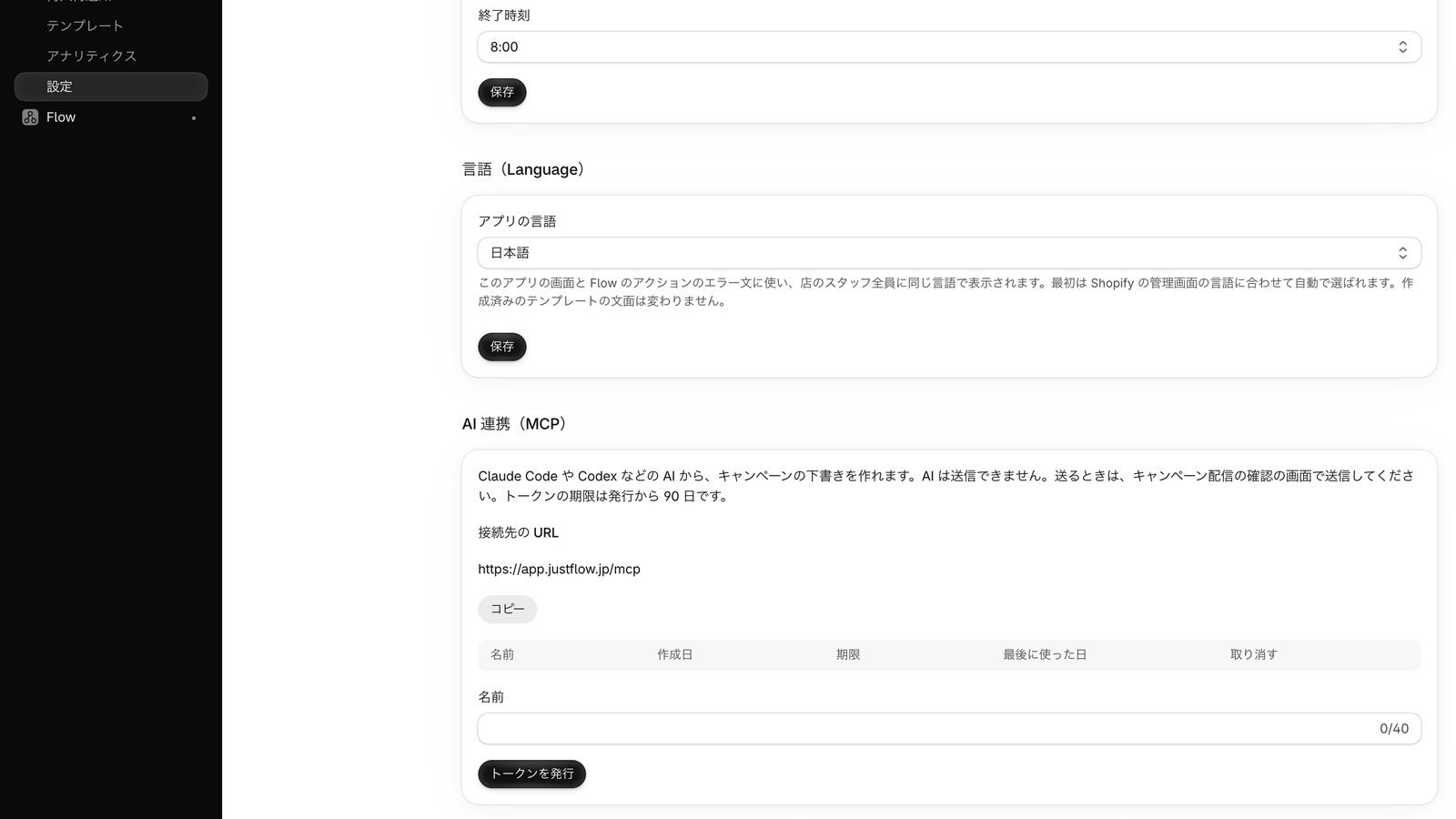
To connect, issue a token in AI integration (MCP) in the app’s Settings, then register the connection URL shown and the token in your AI tool. The Settings screen also shows an example of connecting with Claude Code.