
Order templates now include the shipping address
- Published
- App version
- v0.2.5
In Flex message order templates, you can now insert the shipping address and phone number in addition to the order's line items.
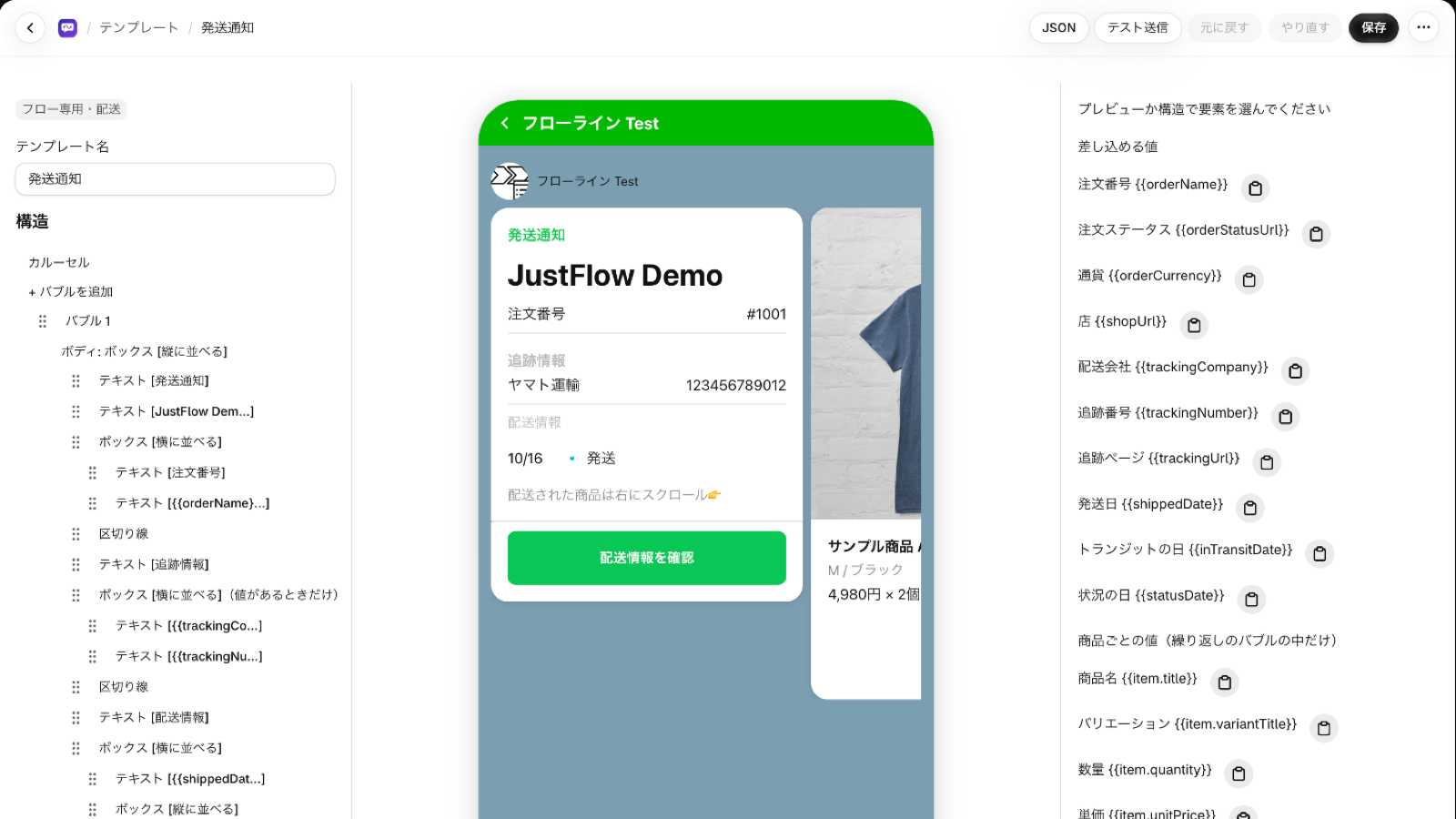
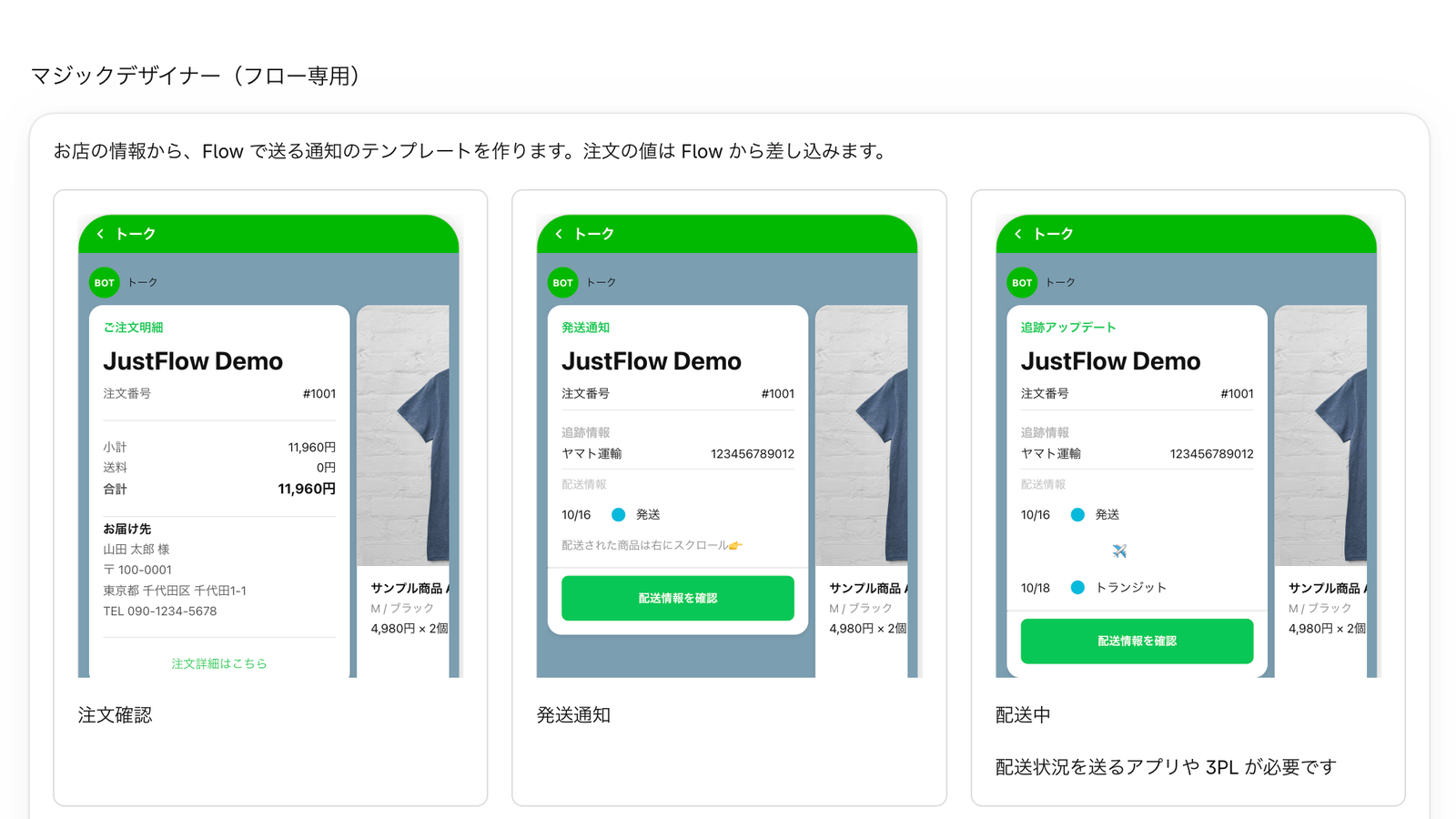
In Flex message order templates, the shipping details (recipient name, address, and phone number) can now be included in the message, in addition to the order’s line items. You can show where the order will be delivered directly in the order confirmation message. Customers can review the order contents and shipping address right in LINE.
What is included
In order templates, when the message is sent from Flow, the following values from that order are inserted into the message.
- Order values such as the order number and order total
- The order’s line items (product name, variant, quantity, unit price, and so on). They can be repeated and listed for each item
- The shipping recipient name, postal code, address, and phone number
Phone numbers for Japanese addresses are inserted in the domestic format.
Before you start
To include order values such as the shipping address and line items, the app may ask for permission to read orders. If you see a prompt on the Flex settings page, grant the permission.
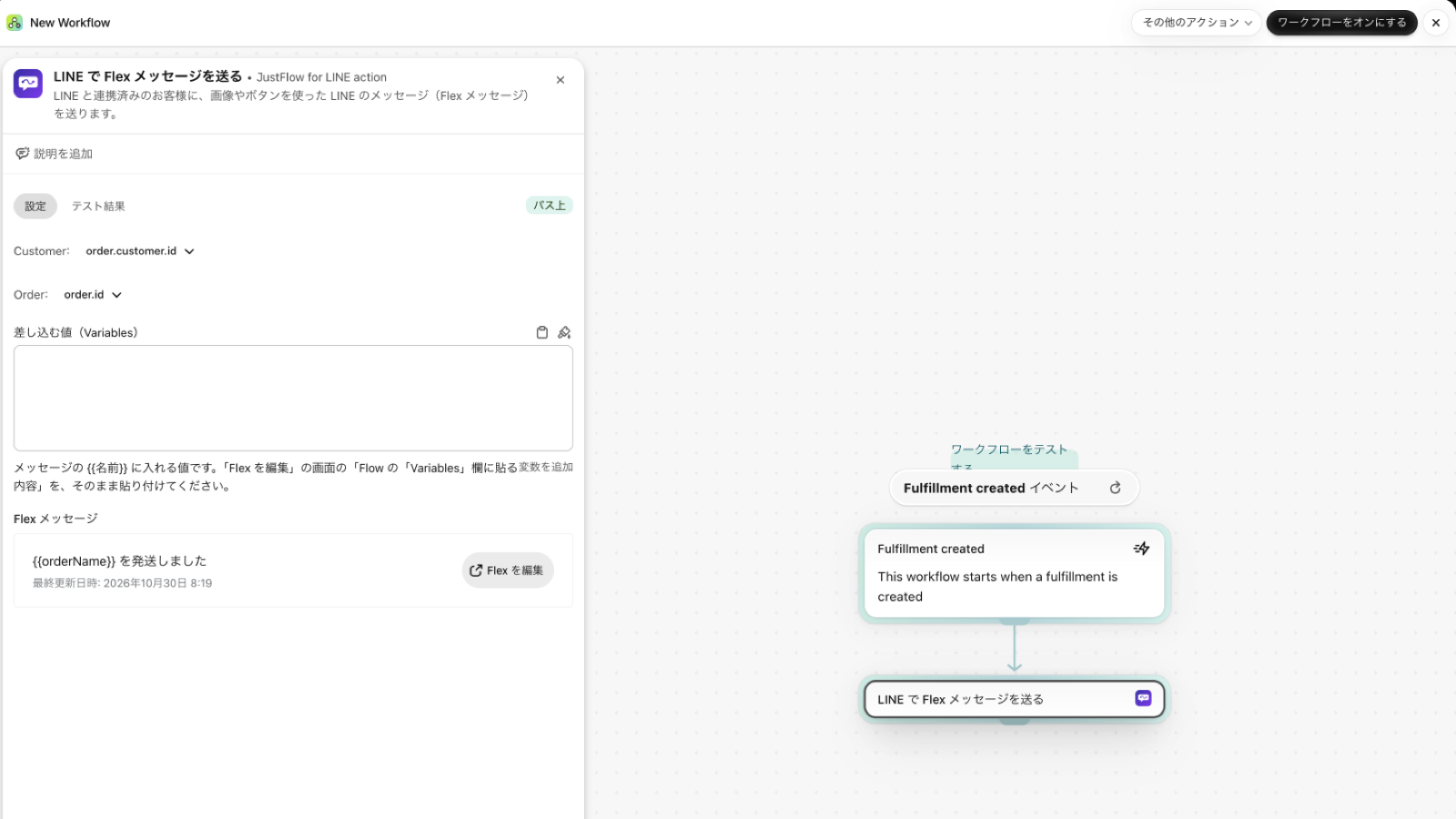
In Flow, in the Flex message action (shown as “LINE で Flex メッセージを送る”), specify the customer to send to and which order’s contents to include (Order).
Choosing a template
- Create a new template in the app’s Templates.
- From the Magic designer (Flow only) samples, choose “Order confirmation”. A template that includes shipping details is created from your shop information.
- From “Values you can insert” on the right, insert the shipping values where you want them. You can remove parts you do not need from Structure.
- Use “Test send” in the editor to check how it looks. Test messages are delivered to the LINE account of a staff member registered as a test recipient.
How shipping details are handled
Shipping details are the customer’s personal information. The information JustFlow for LINE receives for order and shipping notifications, and how it is handled, is described in the privacy policy.